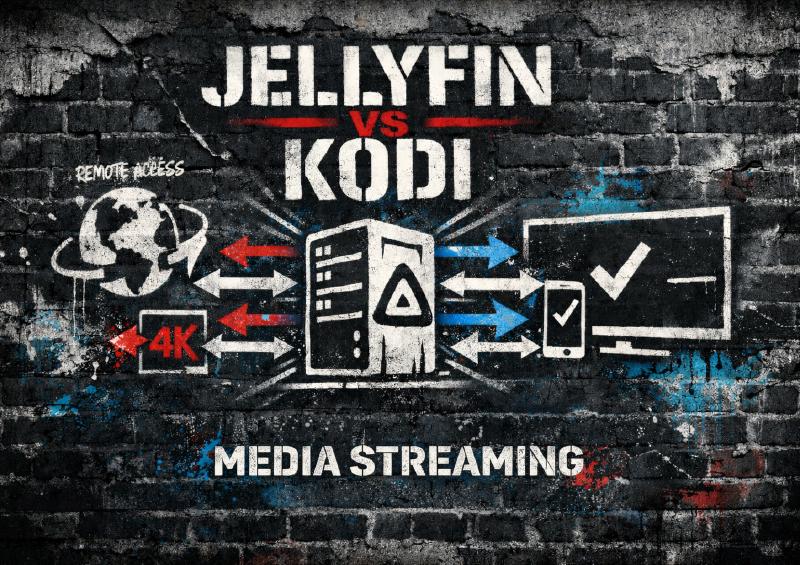
Jellyfin vs Kodi: which media server is better for you? If you’ve ever said “Kodi is awesome, but…” and then sighed, this post is for you.
Kodi was my media center for years. I loved the skins, the endless tweaks, and the feeling that I could make it do anything. But once it had to work for my wife, friends, and multiple TVs, Kodi stopped being a fun hobby and turned into an ongoing tech support job.
That’s when I finally ditched Kodi as my primary media player and moved to Jellyfin. Not Kodi with network shares. Not Kodi with a bunch of sync hacks. Not even Kodi with the Jellyfin plugin, which is good but still not the clean fix I wanted.
I switched to Jellyfin server and Jellyfin clients. It solved the three things that made Kodi painful: syncing watched status across devices, transcoding files that wouldn’t play, and sharing media remotely without being a tech support desk.
This article explains why, from the perspective of someone who’s run both for years.
Kodi vs Jellyfin: The Mental Model That Changes Everything
Before we get into features, you need to understand one core difference. This alone explains why Jellyfin feels easier once you switch.
Kodi: A Player First
Kodi is designed to run on the device connected to your TV. Each Kodi box:
- Scans media itself
- Maintains its own library database
- Tracks watched status locally
- Depends on the device’s hardware to play files
You point Kodi at local files or network shares, and it works great for that use case. But every device is effectively on its own unless you add extra layers like shared databases or third-party services (Like Trackt).
And look, setting up MySQL database sharing across Kodi instances? That’s a weekend project that’ll break in a few months. I could never keep the database working for more than a few months at a time.
Jellyfin: A Server With Clients
Jellyfin flips the model.
- One Jellyfin server indexes your entire library
- All metadata, artwork, and watched status live in one place
- Every device connects as a client
- The server decides whether to direct-play or transcode
For most people, one central server is simpler than maintaining multiple Kodi installations. You’re managing one thing instead of five.
Getting Started: What Jellyfin Setup Actually Looks Like
You don’t need an enterprise server to run Jellyfin. Honestly, you probably have something lying around that’ll work.
Where Jellyfin Can Run
- NAS systems like Unraid or TrueNAS
- Mini PCs and Intel NUCs
- Old desktops
- Even Raspberry Pi for light use (though transcoding will not work well)
Beginner Setup Reality Check
- Install Jellyfin server - Can be installed on just about any computer it doesn’t need much
- Intel 8th Gen or newer for transcoding
- Point it at your media folders - Movies, TV Shows, Music
- Can be network storage like Unraid, OpenMediaValt, or just a simple NAS
- Let it scan and download metadata - This takes a while the first time
- Install the Jellyfin app on your streaming device
- Like: the NVIDIA Shield, Smart TV, or even some gaming consoles
- Log in and start watching - It really is just that easy
The whole process takes maybe an hour if you already have media organized. Compare that to setting up Kodi on every device you want to watch on, then explaining to your spouse why the living room TV shows doesn’t show the same watch progress on the bedroom one.
Hardware Expectations
Here’s the thing: hardware matters, but not as much as you’d think.
- Mostly direct play, one or two users: any old desktop works fine
- Multiple remote users, lots of transcoding: Intel Quick Sync (Intel 8th Gen or newer) or a GPU helps massively
- Weak CPU with no hardware acceleration: expect stuttering when transcoding
If you’re just watching locally and your files are already in formats your devices support, you can run Jellyfin on a potato. It’s when you start transcoding 4K movies for your friend’s phone that you need real hardware.
Why Jellyfin Beat Kodi in My House
Kodi was fine when it was just me. I could tinker, fix things, restart services. But once my wife started using it daily, the friction became obvious:
- Different Kodi boxes had different watched statuses
- One update broke a skin and suddenly nothing looked familiar
- Some files played on one TV but not another
- Explaining “just back out and refresh the library” got old fast
I tried Kodi with the Jellyfin plugin, and while it helped with library sync, it still left me maintaining two layers: Jellyfin plus Kodi on every device. Every Kodi update was a potential disaster. Every new device meant configuring Kodi again.
Switching to native Jellyfin clients finally solved the problem. One app, consistent interface, no per-device configuration hell.
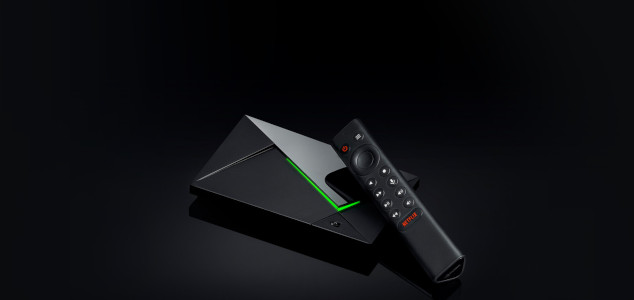
A premium Android TV client, it offers excellent Jellyfin playback, smooth 4K HDR support, and broad codec compatibility, making it a top choice for users wanting a seamless living room experience with Jellyfin.
Jellyfin Transcoding: Making Files Play Everywhere
Alright, so here’s where Jellyfin really shines compared to Kodi.
Kodi plays files locally. If the device can’t decode the file, playback fails or stutters. Kodi has no server-side transcoding, it’s all on the client device.
Jellyfin includes a full transcoding engine based on FFmpeg. This means the server can:
- Convert unsupported codecs on the fly
- Downscale 4K video to 1080p for older TVs
- Adjust bitrate for slow connections
- Convert audio formats like TrueHD or DTS-HD to stereo
In simple terms: Your phone can now play that 4K HDR movie because Jellyfin converts it to something your phone understands, in real time.
Your friend with the ancient Fire Stick? They can watch your 4K Blu-ray rips because Jellyfin handles the conversion. With Kodi, they’d just get a black screen or stuttering mess.
Hardware Acceleration Warning
Jellyfin supports hardware-accelerated transcoding on Intel Quick Sync, NVIDIA NVENC, and AMD VA-API. When it works, your server can handle multiple streams without maxing out the CPU.
When it doesn’t work: You get stuttering, buffering, or the server crashes under load.
I know what you’re thinking: “how hard can it be?” Well, driver issues on Linux are real. Wrong permissions for hardware devices will bite you. Codec support varies by GPU generation. Test hardware transcoding with one stream before depending on it, because finding out it doesn’t work when three people are trying to watch at once is not fun.
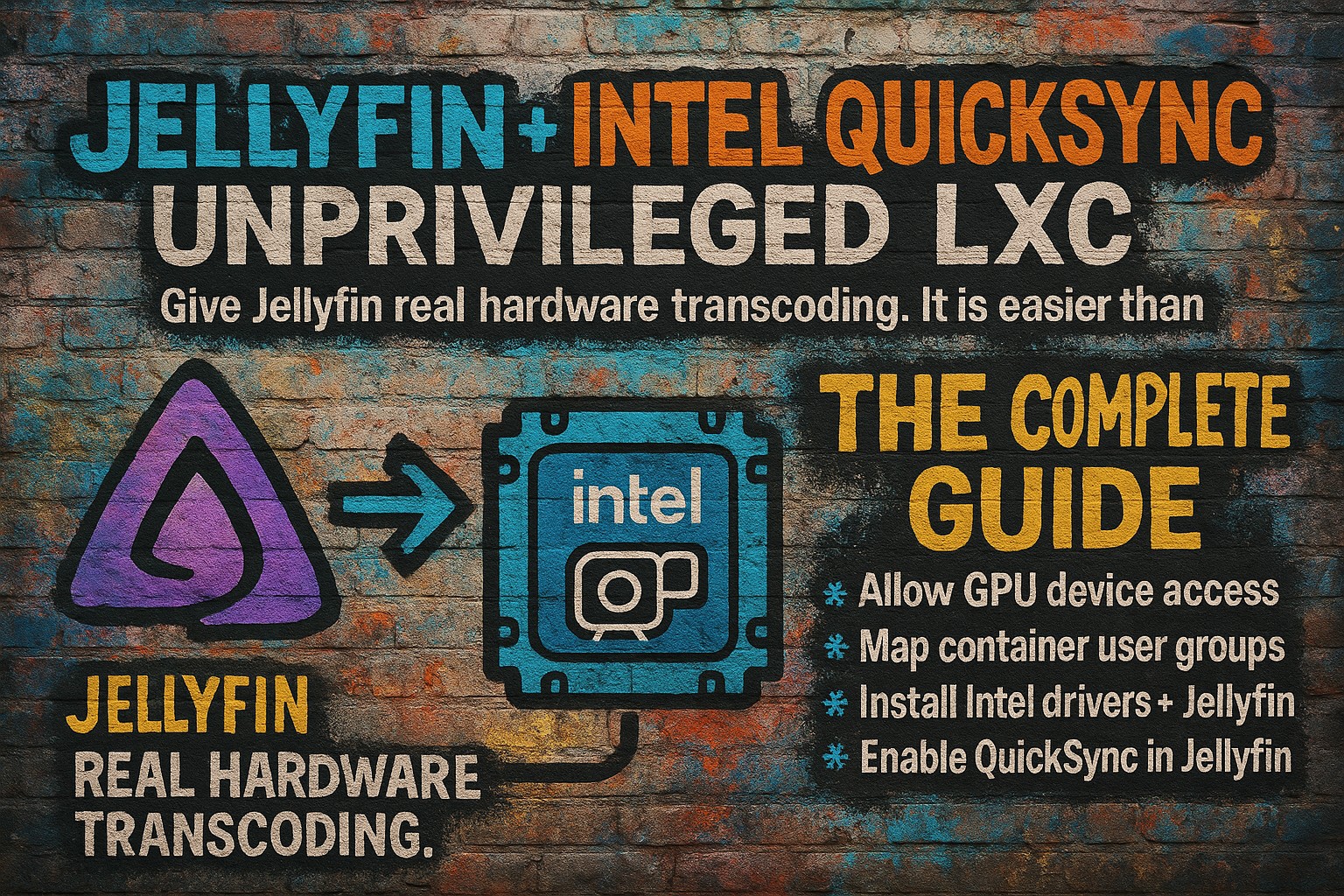
Jellyfin + Intel QuickSync - The Complete Guide
How to install and configure Jellyfin in an unprivileged LXC container with QuickSync.
Centralized Library and Watched Status Sync
Jellyfin tracks watched episodes, movies, and resume positions down to the second. Start a show on your living room TV, pause halfway through, and resume on your phone in bed. It just works.
Kodi can sync watched status, but only if you set up a shared MySQL database, use third-party services like Trakt, or run Kodi as a front-end to Jellyfin. Jellyfin does it by default. No configuration, no third-party accounts, no database setup.
This centralized approach extends to all metadata, artwork, and library organization. Change something once on the server, and every client sees the update immediately.
Remote Access: Sharing Media Without Pain
This is where Jellyfin completely outclasses Kodi.
Kodi Remote Sharing Reality
Yes, you can share Kodi libraries remotely using VPNs or SMB shares. But it usually involves explaining network paths, teaching friends how to mount drives, or giving out file share credentials.
And then they call you because it stopped working after a Windows update. Or their router rebooted. Or they got a new phone and don’t remember the setup steps.
Jellyfin Is Designed for This
Jellyfin includes user accounts, per-library permissions, bandwidth limits, and secure authenticated access. You can expose Jellyfin using port forwarding with HTTPS, a reverse proxy, or a mesh VPN like Tailscale.
Friends just install an app, log in, and watch. Because of transcoding, it works even on weak devices. No explaining network shares. No VPN configuration. No tech support calls at 10pm.
Common Jellyfin Pain Points to Expect
Look, Jellyfin isn’t perfect. Here’s what’ll probably trip you up:
Hardware Transcoding Failures
- Driver issues on Linux (especially NVIDIA)
- Wrong permissions for hardware devices (
/dev/driaccess problems) - Codec support varies by GPU generation
When hardware transcoding fails, Jellyfin falls back to software transcoding, which will max out your CPU. You’ll know because your server fans will sound like a jet engine.
Weak Server Performance
- Software transcoding taxes weak CPUs
- Multiple 4K transcodes need serious hardware
- Remote users expect things to “just work” regardless of your setup
If you’re running on an old laptop with a dual-core CPU, don’t expect to transcode 4K to three people simultaneously. It just won’t happen.
Android TV App Limitations
- Some cheap Android TV boxes struggle with the official app
- HDR passthrough can be finicky
- Third-party clients like Findroid sometimes work better
The official Jellyfin Android TV app is solid, but if you’ve got a $30 Android box from Amazon, you might have issues. Try Findroid if the official app gives you trouble.
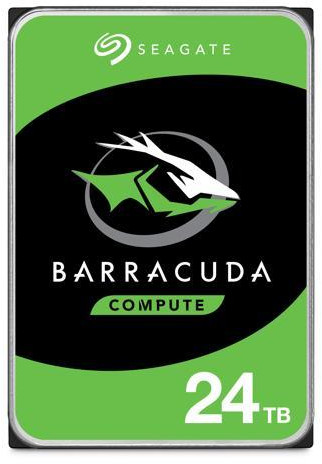
Large, affordable storage is essential for a growing media library, and this drive provides ample capacity for movies and shows, though it lacks NAS/enterprise features for heavy multi-user or RAID use.
Why Native Jellyfin Beats Kodi Plus the Jellyfin Plugin
The Jellyfin plugin for Kodi is excellent. It turns Kodi into a Jellyfin client, syncing libraries and watched status. I used it for months.
But with Kodi plus Jellyfin, you still manage Kodi settings on every device, Kodi or Jellyfin server updates can break things. Native Jellyfin clients remove an entire layer of troubleshooting.
My rule: I use Kodi plus Jellyfin for myself when I want customization. I never give Kodi to friends or family. They get native Jellyfin clients, because I value my free time.
Troubleshooting Common Issues
Playback Stutters or Buffers
First, check if the stream is transcoding or direct playing. In the Jellyfin dashboard, you can see active streams and whether they’re transcoding.
If it’s transcoding:
- Enable hardware acceleration if you haven’t already
- Lower client bitrate for weak devices
- Consider pre-converting very high bitrate files if you’re hitting this constantly
If it’s direct playing and still stuttering, your network’s probably the issue.
High CPU Usage on the Server
- Too many software transcodes happening at once
- Enable hardware transcoding if available
- Consider pre-converting very high bitrate files
If you see 100% CPU usage and your server’s crawling, someone’s transcoding without hardware acceleration. Fix that first.
Remote Access Works Locally but Not Outside
- Verify port forwarding or VPN configuration
- Confirm users are connecting to the correct external address
- Check firewall rules on both the server and router
A few minutes testing this yourself saves an hour or more of back-and-forth with friends who can’t connect.
FAQs
➤ Is Jellyfin completely free like Kodi?
➤ Do I need a powerful server?
➤ Can I still use Kodi with Jellyfin?
➤ Is Jellyfin as customizable as Kodi?
➤ Will Jellyfin always transcode my files?
Conclusion: Why Jellyfin Won for Me
Kodi is still amazing software. If you love tweaking and customizing, Kodi will always have a place. I’m not saying Kodi is bad, I’m saying it’s designed for a different use case.
But for most people, especially families and shared households, Jellyfin is the better tool. One server, synced playback everywhere, reliable transcoding, easy remote access, and simple apps that just work.
I ditched Kodi not because it failed, but because Jellyfin solved the problems Kodi was never designed to solve. If you’re tired of being the household media IT department, Jellyfin might be your way out.
Ready to set up your own Jellyfin server? Check out the official Jellyfin documentation for installation guides and best practices.
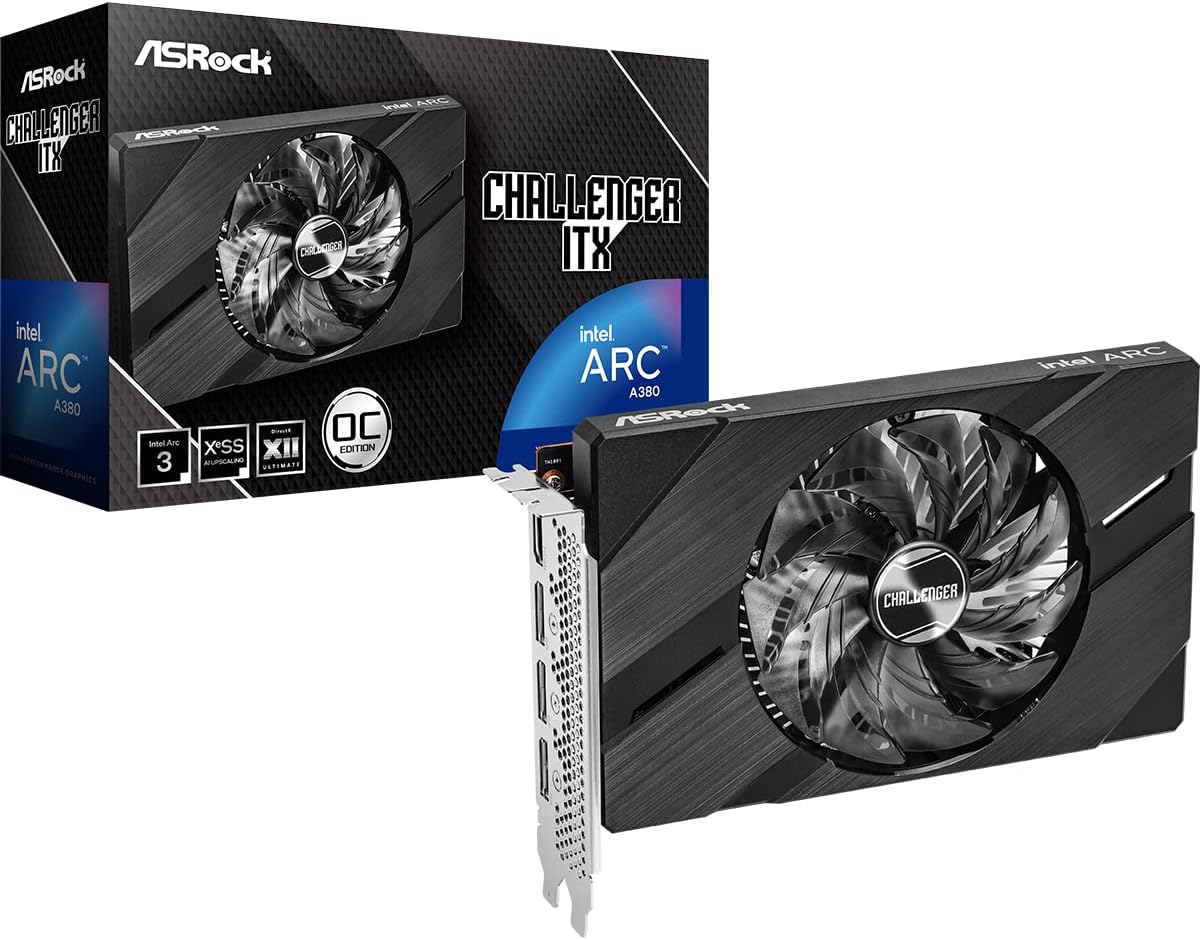
This low-power GPU enables efficient hardware transcoding for Jellyfin, especially useful if you have multiple users or diverse client devices, but it’s not required if your clients can direct play all your content.