
I used to think choosing between NFS and SMB was like picking between Coke and Pepsi: a purely personal preference with no real consequences. I was wrong. If you’re running a Linux media server and care about performance, compatibility, and sane file permissions, the protocol you choose will define your entire experience. Pick wrong, and you’ll spend weekends debugging permission errors instead of watching movies or shows.
This guide cuts through the mythology and gives you a practical decision framework for NFS vs SMB. I’ll show you where each protocol shines, how to set them up on a Linux server, what settings actually matter, and how to avoid the gotchas that regularly bite folks. Whether you’re running a mixed-OS environment or just trying to access your Unraid shares from Windows, this one’s for you.
NFS vs SMB: What Each Protocol Does
Network File System (NFS) is the native file-sharing protocol for Unix and Linux systems. It makes remote folders appear as local directories, with tight integration into the Linux kernel. It’s how Linux prefers to share files across a network.
Server Message Block (SMB) is Windows’ native file-sharing protocol. Linux systems access SMB shares through Samba, while macOS speaks SMB natively. SMB packs more features and integrates deeply with Windows authentication and permissions.
| Feature | NFS | SMB |
|---|---|---|
| Best for | Linux-to-Linux | Mixed OS / Windows |
| Default on | Linux/Unix | Windows |
| Encryption | NFSv4 + Kerberos | SMB3 built-in |
| Performance (small files, Linux) | Faster | Slower |
| Performance (large files) | Similar | Similar |
| Windows support | Poor | Native |
| Docker/container use | Common | Less common |
| Setup complexity | Simple (Linux) | Moderate |
Why this matters for your media server:
Your media server constantly reads metadata, generates thumbnails, and streams video files. The protocol you choose directly impacts how fast library scans complete, how quickly your media player interface loads, and whether file permissions stay manageable or slowly drive you insane.
Your clients’ operating systems drive the decision. Running a Linux media server accessed only by other Linux machines? NFS typically performs better. Mixed environments with Windows, macOS, and Linux clients? SMB is the sane choice.
Both protocols can be properly secured on a trusted LAN, but their default configurations and hardening approaches vary significantly. Poor defaults have real consequences. SMBv1 vulnerabilities enabled major malware outbreaks. Misconfigured NFS exports can expose your data to anyone on the network. Neither protocol forgives carelessness.
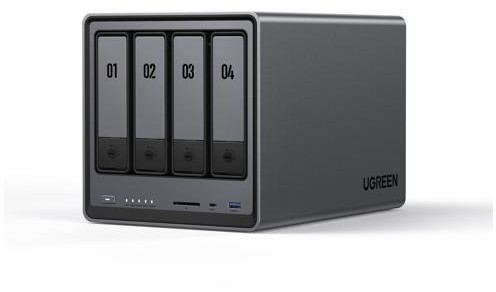
Four bays, an Intel N100, and a 2.5GbE port. Supports both NFS and SMB out of the box, so you can actually test what you’re reading about here instead of just theorizing. A solid entry point if you don’t already have a NAS to experiment with.
NFS or SMB: Which Protocol Should You Use?
All clients are Linux, Unix, or Android TV?
- Pick NFS. It’s fast, mature, and simple for Linux-to-Linux communication. You’ll avoid the worst of the permission headaches, provided you manage your UIDs and GIDs correctly. (More on that later.)
Windows or macOS clients in the mix?
- Pick SMB. It’s native on Windows, works smoothly on macOS, and Samba on Linux is robust. If specific Linux-only apps benefit from NFS, you can add it alongside SMB, but let SMB be the default.
Security and centralized authentication matter?
- SMB3 with modern authentication and encryption is the more straightforward path, especially in Windows and Samba environments. NFSv4 with Kerberos can be equally secure, but the setup complexity is significantly higher. If you’re not doing Kerberos, restrict NFS to trusted subnets and use strong firewall rules.
Running Unraid or another NAS?
- Unraid and most NAS platforms support both protocols. Use SMB for Windows clients, NFS for Linux clients or Docker containers. Don’t expose either protocol to the internet. Ever.
NFS vs SMB Pros and Cons
NFS: Strengths and Weaknesses
Pros:
Fast on Linux. Lower protocol overhead and native kernel modules give NFS an edge when dealing with many small file operations in Linux-only environments. For a Linux media server streaming content to other Linux clients and managing large collections, this matters.
Simple integration. NFS is part of the Linux ecosystem. Mounts, fstab, systemd units, and permissions all make sense if you track your UIDs and GIDs. No wrestling with foreign concepts.
Stateless heritage. Classic NFSv3 is largely stateless, which can simplify some failure recoveries.
Cons:
Security by default is weaker. Older NFS versions lack encryption and rely on client-side UID/GID trust. NFSv4 improves this and supports Kerberos, but few home labs set that up correctly. Most people live with the risk and lock things down with firewall rules. Know that you’re making that trade-off.
Windows support is painful. Windows can mount NFS, but the built-in client is inconsistent across editions and awkward to configure. If you need to access shares from Windows regularly, save yourself the grief and use SMB.
Focused feature set. NFS does file and directory sharing well. That’s it. Don’t come looking for the broader Windows ecosystem features that SMB provides.
Best fit: Linux media servers and clients, Docker workloads, Kubernetes, and Linux-only NAS access.
SMB: Strengths and Weaknesses
Pros:
Cross-platform. Native on Windows, solid on macOS and Linux via Samba. For mixed-OS homes and offices, SMB just works. That’s not praise you hand out lightly in this industry.
Modern security. SMB3 supports strong authentication and optional encryption, integrates with Active Directory, and includes features like signing and multichannel. When configured properly, it’s solid.
Feature-rich. Beyond files, SMB supports printers and deep Access Control List (ACL) capabilities that align with Windows permission models. If you have a Windows background, the permissions will feel familiar.
Cons:
More overhead. Often slower than NFS in Linux-to-Linux scenarios with many small files, though SMB3 performance can be excellent with Windows clients. The extra features come at a cost.
More knobs to misconfigure. Samba has a lot of options, and it’s easy to botch permissions or lose performance with certain security defaults. The flexibility is both a blessing and a trap.
Best fit: Mixed OS environments, Windows clients, or macOS systems.
Preparing Your Linux Server or NAS
Whether you’re running a bare Linux server, Unraid, Synology, TrueNAS, or another NAS platform, the setup approach stays consistent. Sort this out before you touch a config file:
Figure out which shares will be accessed by which clients. Use SMB for Windows and macOS connections. Use NFS for Linux apps and clients. Avoid exporting the same path through both protocols unless you understand the consequences for permissions and extended attributes (and you probably don’t yet, which is fine). Keep both protocols scoped to your trusted LAN. Never port-forward 445 or 2049 from your router to the internet.
On Unraid specifically:
SMB comes enabled by default, making Windows access straightforward. You can enable NFS per share for Linux clients and containers. Mapping Windows drives to SMB shares is point-and-click simple. Accessing NFS shares from Windows, on the other hand, requires client-side tools and sometimes Windows Enterprise features. For most home setups, SMB handles Windows clients just fine. Don’t add an unnecessary headache.
On Synology DSM:
Synology supports both NFS and SMB through its Control Panel. SMB is enabled by default. To enable NFS, go to Control Panel > File Services > NFS and check “Enable NFS service.” You can then set NFS permissions per shared folder under the folder’s edit settings. Synology makes this relatively painless, but pay attention to the squash settings and allowed IP ranges. The defaults are conservative, which is the right instinct, but they’ll block access if you don’t explicitly allow your client subnets.
On TrueNAS (SCALE and CORE):
TrueNAS supports both protocols through its web UI. Create a dataset first, then configure SMB or NFS sharing on top of it. For Jellyfin or Plex running in a TrueNAS container or jail, NFS is the common choice for mounting media storage. Be aware that TrueNAS SCALE uses Linux under the hood while TrueNAS CORE uses FreeBSD, which can affect how NFS permissions behave. If you’re running apps on TrueNAS SCALE, pointing them at an NFS share from a separate dataset avoids the host path permission headaches that catch a lot of people.
Setting Up SMB on a Linux Server (Samba)
Getting SMB running on Linux is straightforward once you know the steps. Here’s how to set up a proper media share that Windows, macOS, and other Linux machines can all access without drama.
Security Notes: Use SMBv3 or higher wherever possible. Disable SMBv1 entirely. If you’ve read this far, and it’s still enabled on your network, go fix that now. I’ll wait.
The linked configuration guide creates a secure, authenticated share that works reliably across different operating systems. Your Linux media server will play nicely with Windows clients without the permission headaches that sometimes plague mixed environments.
Setting Up NFS on a Linux Server
Getting NFS running on your Linux media server is straightforward once you know the steps. Here’s how to get it configured properly:
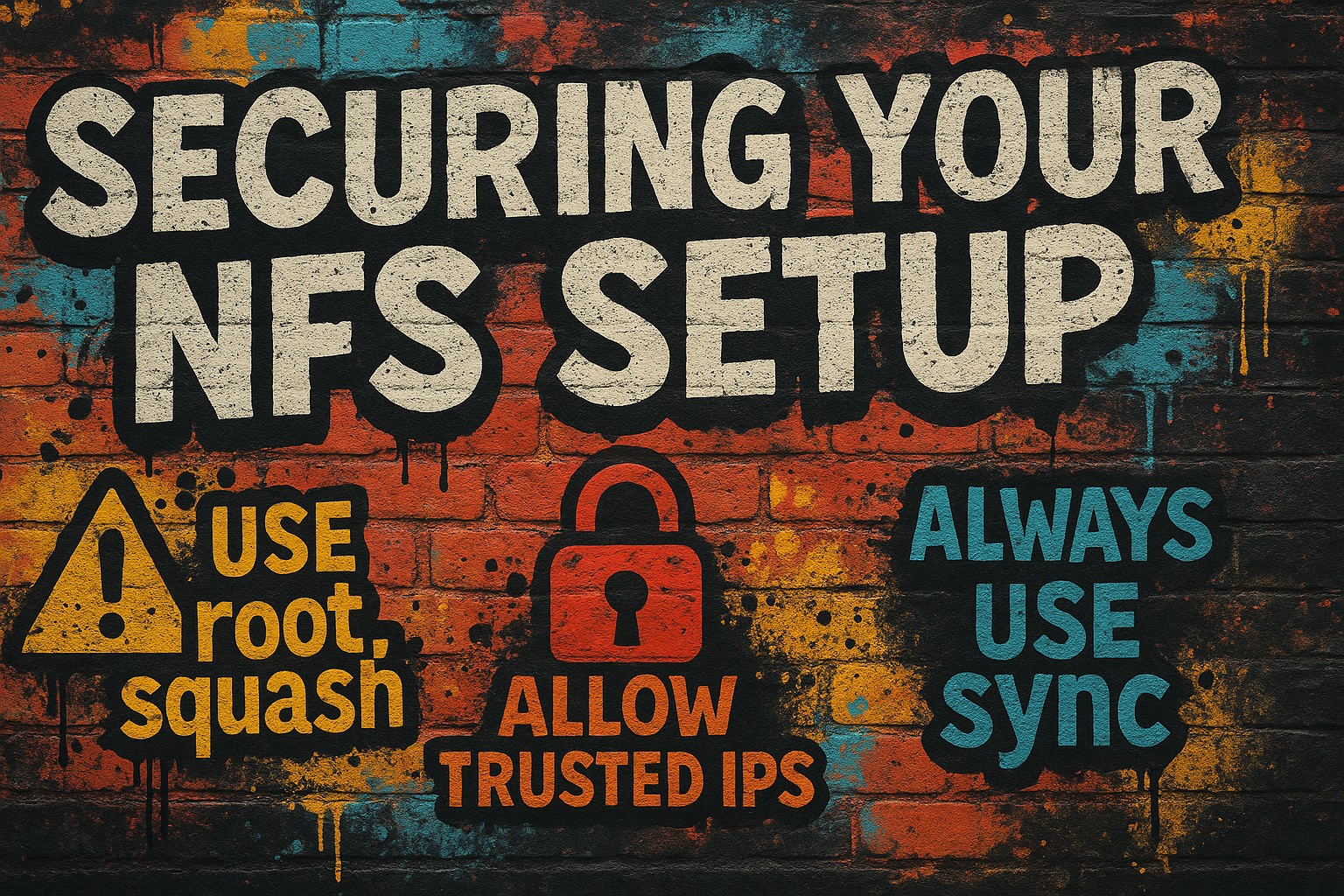
For those who want the quick version, here’s what mounting an NFS share from a Linux client looks like in practice:
# One-time manual mount to test the connection
sudo mount -t nfs4 192.168.1.100:/mnt/media /mnt/nfs/media

# Persistent mount via /etc/fstab (survives reboots)
# Add this line:
192.168.1.100:/mnt/media  /mnt/nfs/media  nfs4  rw,noatime,rsize=1048576,wsize=1048576  0  0
Replace the IP and paths with your own. Test the manual mount first. If that works, add the fstab entry. If the manual mount fails, don’t bother with fstab until you’ve sorted out the underlying issue. Debugging a boot hang caused by a bad NFS mount in fstab is a miserable experience. Ask me how I know. If you’re worried about boot hangs, add the nofail option, so the system boots even if the NFS server is unreachable.
NFS and SMB Security Best Practices
Here’s the thing about network file sharing: convenience and security pull in opposite directions. But a few smart choices upfront will save you from becoming internet famous for all the wrong reasons.
Keep it local. SMB and NFS belong on your trusted LAN only. Never expose ports 445 (SMB) or 2049 (NFS) to the internet. Block them at your router and firewall. This isn’t paranoia. This is basic hygiene.
SMB security essentials:
Disable SMBv1 entirely. It’s ancient, vulnerable, and has no place in modern networks. Use SMBv2 or SMBv3. Enable strong authentication and SMB encryption where your data sensitivity justifies the CPU overhead. Yes, encryption costs performance, but that’s a trade-off worth making for sensitive content. If you need centralized user management, integrate with existing directory services rather than managing local accounts one by one.
NFS security essentials:
Stick with NFSv4 over older versions. Restrict exports by IP or subnet. Use root_squash to prevent compromised clients from running wild with root privileges. Deploy host-based firewalls to allow only known clients. Defense in depth matters because single points of failure are single points of regret.
The backup reality check: Neither SMB nor NFS will save you from accidental deletion or ransomware. Keep offline or versioned backups of your important data. This is not optional. Your future self will thank you, or your current self will learn the hard way.
NFS and SMB Performance Tuning
Getting good performance from network shares isn’t rocket science, but a few targeted tweaks can make a noticeable difference. Here’s what actually moves the needle:
NFS:
For large sequential reads (streaming movies), the default settings are usually fine. For many small files, look at actimeo (attribute cache timing) and consider noatime to reduce metadata writes. Use NFSv4.2 when available. It cuts down on port sprawl and handles flaky network connections better. You can bump up rsize/wsize (try rsize=1048576,wsize=1048576 as a starting point), but test with your specific NIC and switch setup. Bigger buffers aren’t always better buffers.
SMB:
Enable SMB multichannel on capable clients and servers. It bonds multiple NICs or network paths for better throughput and fault tolerance. Stick with SMB version 3.x or higher.
Both protocols:
Jumbo frames (MTU 9000) can help, but only if every single network hop supports the same MTU. Miss one switch or router, and you’ll actually make things worse. Always test with tools like robocopy (Windows), fio, or dd to measure before and after. A simple sequential read test with fio looks like this:
fio --name=seqread --rw=read --bs=1M --size=1G --numjobs=1 --filename=/mnt/yourshare/testfile
Change one variable at a time. Otherwise you’ll never know what helped and what hurt.
NFS vs SMB Speed: What the Benchmarks Actually Show
People love to argue about NFS vs SMB performance in the abstract. Here’s what the numbers actually look like in real homelab conditions.
For sequential reads and writes (streaming a movie, copying a large file), NFS and SMB perform within a few percent of each other on a modern gigabit or 2.5GbE link. Both protocols will saturate a 1GbE connection without breaking a sweat. You’re not going to notice a difference when playing a 30GB Blu-ray remux over either protocol.
The gap opens up with small files. When your media manager scans a library of thousands of NFO files, poster images, and subtitle files, NFS on Linux clients can be 25-30% faster than SMB for random read operations. This is where NFS’s lower protocol overhead and kernel-level integration actually matter. If your Jellyfin library scan takes 20 minutes over SMB, it might take 14 over NFS. That adds up when you’re managing a large collection.
SMB claws back some ground on random writes, where it’s sometimes faster depending on the server and client configuration. And on Windows clients, SMB’s native stack optimizations mean it frequently outperforms NFS, which is running through a clunkier client implementation on that platform.
The takeaway: don’t pick a protocol based on speed alone. Pick based on your client OS, then tune for speed within that choice.
Protocol benchmarks don’t mean much against a handful of test files. You need a real media library to see the difference. 24TB gives you enough room to fill a NAS and actually stress-test your NFS or SMB configuration with thousands of files, not a synthetic toy workload.
Common NFS and SMB Pitfalls
Mixing NFS and SMB on the same share:
This is a deep topic, but the short version: Windows ACLs and POSIX permissions are like oil and water. Samba stores NT ACLs as extended attributes, but NFS clients may not preserve them. If you must mix protocols on the same data, separate your write paths or designate one protocol for writes and keep the other read-only.
UID/GID mismatches on NFS:
Keep your user and group IDs consistent across all Linux clients. Use centralized identity management (LDAP/SSSD) or carefully align your /etc/passwd entries. For a quick check, run id username on both client and server and make sure the numbers match. Debugging permission issues caused by mismatched IDs is not how you want to spend your weekend.
Assuming “NFS is insecure” or “SMB is slow”:
These are lazy generalizations. NFSv4 with Kerberos is robust. SMB3 on modern stacks is both fast and secure. The real performance and security outcomes depend on your configuration and client mix, not the protocol name on the tin.
Turning on async writes blindly on NFS:
Async writes (async in /etc/exports) can boost speed, but at the cost of data safety during crashes. If the server goes down mid-write, you can lose data. Understand the trade-off before flipping that switch.
Exposing shares directly to the internet:
This is how you get pwned. Use VPNs for remote access. Never use direct port forwards for file shares. Not “probably don’t.” Don’t.
Example Scenarios: What To Choose
Here’s how to pick the right protocol based on your actual setup:
All Linux home:
Export media via NFSv4, mount on Jellyfin/Plex and your Linux desktop. Keep UIDs aligned across systems. Optionally offer SMB read-only for occasional Windows use. This gives you the performance benefits of NFS where it matters most while keeping a door open for Windows guests.
Windows family PCs, macOS laptop, Linux server NAS:
Use SMB for everyone. Enable NFS only for Linux containers or hosts that specifically benefit from it. Keep permissions in one place through Samba. Fighting permission mismatches across protocols isn’t worth the headache when SMB works fine for the whole house.
Unraid backing multiple Docker apps and a Windows gaming PC:
Give containers NFS or bind mounts for speed. Export the same content over SMB to Windows, but consider separate paths or read-only mounts to avoid permission drift. This hybrid approach lets your containers stay fast while keeping Windows happy. Watch for permission conflicts if both protocols write to the same files. When in doubt, pick one writer.
NFS vs SMB for Docker Containers
If you’re running Plex, Jellyfin, Sonarr, Radarr, or any other media app in Docker, you have three main options for accessing remote storage: NFS mounts, SMB/CIFS mounts, or bind mounts from a path already mounted on the host.
The cleanest approach for most homelabs is to mount the NFS share on the Docker host, then bind-mount that path into your containers. This keeps the NFS configuration in one place (the host’s /etc/fstab) and lets every container access the same media library without each one needing its own network mount logic. Here’s what that looks like:
# On the Docker host, mount the NFS share
192.168.1.100:/mnt/media  /mnt/nfs/media  nfs4  rw,noatime,nofail  0  0

# In docker-compose.yml, bind-mount it into the container
volumes:
  - /mnt/nfs/media:/media
You can mount SMB/CIFS shares into Docker containers using a CIFS volume driver or by mounting on the host first, but NFS is generally the better fit here. It avoids the SMB authentication layer, has less overhead for the constant small-file reads that media apps love to do, and plays nicer with Linux permissions inside containers. If your NAS is a Synology, TrueNAS, or Unraid box, enable NFS for these container workloads even if the rest of your house uses SMB.
One warning: make sure the NFS share is mounted before Docker starts your containers. If the mount isn’t ready and your container writes to what it thinks is the media directory, those writes land on the host’s local filesystem instead. You’ll spend an hour wondering why your files disappeared. Use nofail and x-systemd.automount in your fstab, or set up a systemd dependency so Docker waits for the mount.
NFS vs SMB for Proxmox
Proxmox users face this question constantly, especially when adding NAS storage as a datastore for VMs, containers, or ISO images. Proxmox supports both NFS and SMB/CIFS as storage backends, configurable directly from the Datacenter > Storage menu in the web UI.
For most Proxmox homelabs, NFS is the better default. Proxmox runs Linux under the hood, NFS is a first-class citizen, and the integration is straightforward. Add your NAS as an NFS datastore, point it at the export path, and Proxmox handles the rest. VM disk images, container templates, backups, and ISOs can all live on NFS storage without issue.
SMB/CIFS storage is also supported in Proxmox, but it’s more commonly used when the storage backend is a Windows server or when NFS isn’t available. If your NAS supports both, pick NFS for Proxmox and save SMB for your Windows and macOS clients.
One Proxmox-specific gotcha: if you’re passing NFS-mounted storage into an LXC container (not a VM), pay attention to UID/GID mapping. Unprivileged containers remap UIDs by default, which means UID 1000 inside the container becomes UID 101000 on the host and on the NFS share. Either use privileged containers for media workloads, manually map the UIDs in the container config, or accept that permissions will fight you until you sort it out.
Troubleshooting NFS and SMB Connections
When things go sideways (and they will), here’s how to get back on track.
Connection refused or cannot mount:
Check if your services are actually running: systemctl status smbd nmbd for SMB, or systemctl status nfs-server for NFS. Verify firewall rules. SMB needs TCP 445, NFSv4 needs TCP 2049. If you’re stuck with NFSv3, rpcbind and mountd may need additional ports opened. Double-check your server IP and share names. Yes, typos happen to all of us.
Permission denied:
For SMB, verify the user exists in both Linux and Samba (pdbedit -L lists Samba users), check smbpasswd, and validate share-level access controls. For NFS, UID/GID mismatches are the usual suspect. Align user IDs between systems or configure idmapd for NFSv4. Also make sure your export options aren’t accidentally set to ro (read-only) when you meant rw.
Slow file transfers:
Check what protocol version you’re actually using. Force vers=3.0 for SMB or vers=4.2 for NFS and test again. Disable Wi-Fi power saving on clients and test over wired connections. For SMB, experiment with multichannel, signing, or encryption settings to understand the performance trade-offs. Don’t disable security features on untrusted networks. For NFS, try different rsize/wsize values and check for duplicate mounts or DNS slowness.
Windows cannot access NFS:
The Client for NFS feature might be missing or unsupported in your Windows edition (Home edition doesn’t have it). Stick with SMB for Windows clients and save NFS for Linux systems.
Media server doesn’t see new files immediately:
For SMB, Samba uses change notifications, but some applications still cache directory listings. Try a manual library refresh or verify your app is watching the correct path. For NFS, attribute caching can delay file visibility. Adjust actimeo=0 for immediate visibility, but expect a performance hit. Find the balance that works for your scan frequency.
Library scans crawl along:
For many small files, NFS on Linux clients often outperforms SMB. Consider running your media scanner on a Linux machine over NFS, even if end users stream via SMB.
FAQs:
➤ What is the difference between NFS and SMB for a home media server?
➤ Does Unraid support NFS and SMB shares?
➤ How do I access an NAS or Unraid share from Windows?
\\unraid-hostname\sharename in the address bar or map it as a network drive. While Windows 10 Pro and Enterprise can mount NFS shares, SMB is the path of least resistance for most home users.➤ Which is faster for Plex or Jellyfin: NFS or SMB?
➤ Is NFS secure enough for my home network?
➤ How do I set up NFS shares on Unraid?
mount -t nfs server:/export /mnt. The key is getting the export permissions right the first time.➤ Can I use both NFS and SMB on the same Unraid share?
➤ Why am I getting permission denied when mounting an NFS share?
/etc/exports for correct options and allowed subnets. This is the most common NFS stumbling block.➤ How do I enable SMB3 encryption on my server?
smb encrypt = required or desired globally or per-share. Keep in mind that encryption adds CPU overhead. Test performance impacts on your hardware before committing.➤ What are the risks of exposing SMB or NFS to the internet?
➤ How do I fix slow file transfers over SMB or NFS?
rsize and wsize parameters. For SMB, enable multichannel if your hardware supports it.➤ Should I use NFSv3 or NFSv4 for my media server?
➤ How do I map Linux users to Windows users for file access?
idmap backends and maintain consistent POSIX ACLs for cross-platform access. The Samba docs on idmap are dense but worth reading. Getting this right once saves you from ongoing permission fights.➤ Should I use NFS or SMB for Docker containers?
➤ Should I use NFS or SMB with Proxmox?
➤ Does Synology support NFS and SMB?
➤ NFS or SMB for TrueNAS media storage?
Conclusion: Make the Choice That Fits Your Clients and Your Risk
The decision comes down to matching your protocol to your environment and accepting the trade-offs.
If your world is Linux, NFS is the pragmatic, fast, and simple default. It speaks the same language as your filesystem and won’t fight you on permissions.
If you have Windows or macOS clients, SMB is the native choice that works. SMB3 brings solid security without requiring a PhD in Kerberos configuration.
You can run both protocols, but don’t blindly export the same writeable path over both unless you understand how permissions and metadata will clash. That way lies madness and mysterious “permission denied” errors at 2 AM.
Lock it down. Keep shares on your LAN, disable SMBv1 (seriously, it’s 2025), prefer NFSv4, and consider Kerberos or SMB encryption where your threat model demands it.
Next steps:
Pick one protocol per client type and start simple. Don’t overcomplicate your first setup. Benchmark your scans and streams to establish a baseline. Layer on security and performance tuning only after you have a stable foundation.
Whether you’re running a Linux media server or trying to access an Unraid share from Windows, the protocol choice matters less than understanding what you’re choosing and why. Your media server will feel faster, safer, and more predictable when you stop treating network protocols like a coin flip and start matching them to your actual needs.
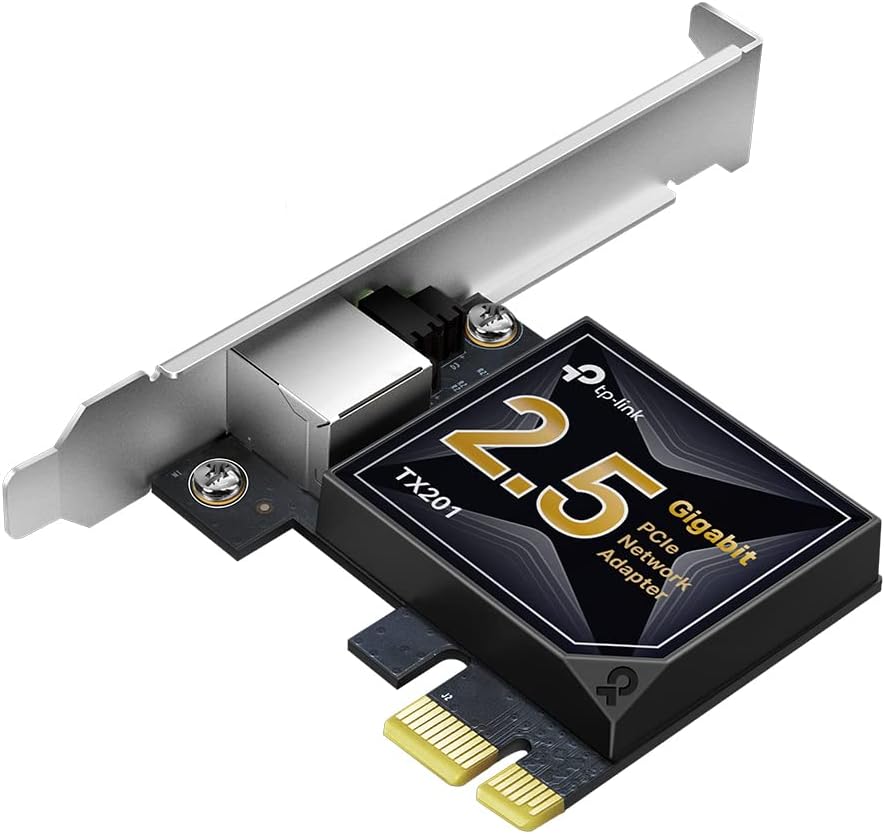
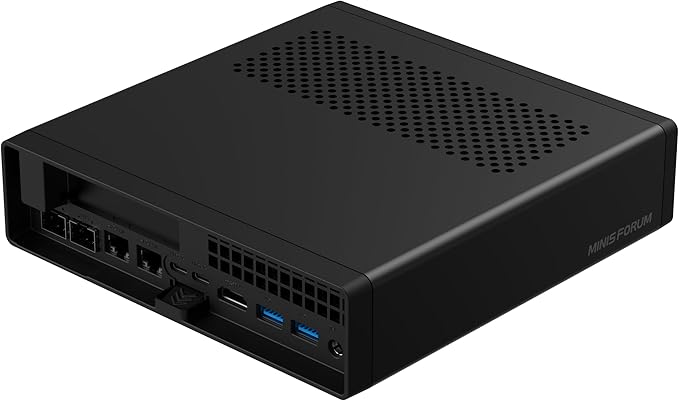
Hard to compare NFS and SMB performance when your NIC is the bottleneck. This 2.5GbE PCIe card is cheap, works out of the box on most Linux distros and Windows, and gets your gigabit ceiling out of the way, so you can see what the protocols are actually doing.