
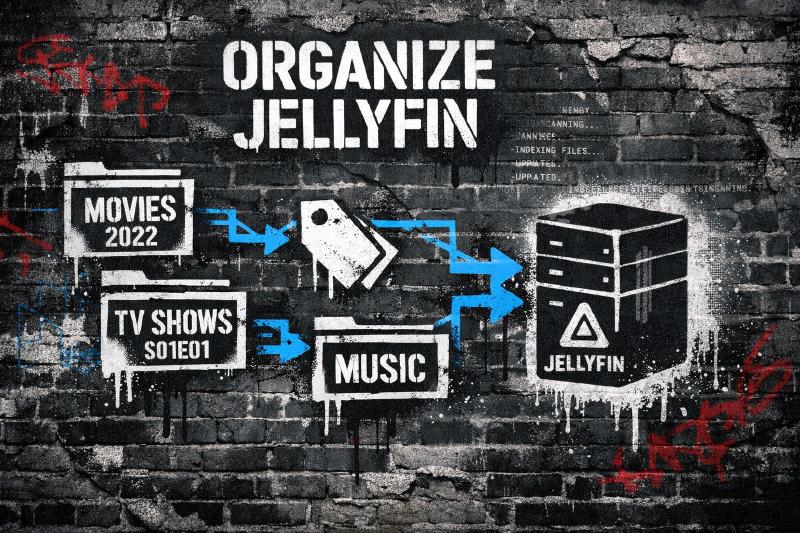
What Is Jellyfin Folder Structure and Why Does It Matter?
Jellyfin folder structure is the specific way you organize media files so Jellyfin can automatically fetch metadata, display posters, and group content correctly. Getting this wrong can cause blank posters, duplicate movies, and scattered TV episodes. Using the proper folder structure makes everything work automatically, no manual intervention needed.
Remember: it’s almost never Jellyfin’s fault. It’s your folder structure and file naming.
I know what you’re thinking, “But it worked fine in Kodi!” or “My folders make perfect sense to me!” I’ve been there too. When I migrated from Kodi to Jellyfin, I thought my organization was solid. It mostly was. But “mostly” meant duplicate movies, missing shows, and entire seasons that refused to group correctly. Once I fixed the structure and naming? Everything just worked.
Jellyfin’s actually really good at automatically fetching posters, descriptions, cast info, and episode data from TMDB and TheTVDB. But it needs your help. It can’t read your mind. It reads your folder names and filenames, then matches them against online databases.
This guide will show you exactly how to organize your media so Jellyfin’s metadata magic actually works.
The Three Rules That Break Everything
Before we dig in, there are about the three mistakes that cause 90% of metadata problems:
1. Missing release years on movies
Without the year, Jellyfin’s playing a guessing game. “The Thing” could be the 1982 classic or the 2011 prequel. Guess which one it picks? Usually the wrong one.
2. Wrong season/episode format
Use S01E01, not 1x1 or Season 1 Episode 1 or whatever creative variation you’ve got going on. Jellyfin expects a specific format, and anything else confuses it.
3. Mixed content types in one library
Movies and TV shows need separate libraries. Mix them, and you’ll get generic metadata, broken browsing, and a headache.
Get these three right and most of your problems disappear.
Why Folder Organization Actually Matters for Jellyfin
I bet you have thousands of files that work fine in your file browser. So, why does Jellyfin care how they’re named?
Because Jellyfin doesn’t know what your files are. It looks at folder names and filenames, then tries to match them against online metadata providers. When your media organization is correct, Jellyfin can automatically:
- Downloads posters and background art
- Groups TV episodes into seasons
- Sorts movies correctly
- Displays accurate titles, summaries, and cast info
When it’s wrong? You get blank posters, duplicate movies, TV episodes listed as individual videos, and missing or mismatched metadata.
That flat folder with 500 randomly-named movie files might work for you, but it’s a nightmare for automated metadata. And honestly, it’ll become a nightmare for you too once your library hits a few hundred items.
Start With the Right Top-Level Folder Structure
Before you worry about individual filenames, get your top-level structure right. Jellyfin works best when each media type lives in its own library.
Here’s what I recommend:
/media
├── movies
├── shows
└── music
Each of these folders should be added to Jellyfin as a separate library, with the correct library type selected. Don’t mix movies and TV shows in the same library. I know it seems convenient, but it breaks everything. Mixed content gets generic metadata and kills browsing features.
How to Organize Jellyfin Library: Movies
Movies need one movie per folder, with the movie name and release year clearly visible. That’s it. That’s the secret.
The Correct Movie Folder Structure
/movies
└── Inception (2010)
    ├── Inception (2010).mkv
    ├── Inception (2010).srt
    └── poster.jpg
Critical rules:
- One folder per movie
- Include the release year in parentheses
- Movie file name should match the folder name
Why Years Actually Matter
Remember “The Thing” example? Without the year, Jellyfin picks one version, often the wrong one. “The Thing (1982)” eliminates the guesswork entirely. Same goes for “True Grit” (1969 vs 2010), “Halloween” (1978 vs 2018), and dozens of other remakes.
Five seconds adding a year saves you ten minutes of manual metadata fixing later.
Extras and Bonus Content
If you’ve got deleted scenes or behind-the-scenes content, Jellyfin supports that:
Inception (2010)
├── Inception (2010).mkv
└── Extras
    └── Behind the Scenes.mkv
When you open the movie in Jellyfin, you’ll see an Extras section. It’s pretty cool.
What About Deep Folder Structures?
Some people organize like /movies/Christopher Nolan/Inception/. It can work if everything’s named perfectly, but honestly? It adds complexity without much benefit. The official Jellyfin documentation recommends keeping movies directly under the movies root for reliability.
TV Show Folder Structure for Jellyfin
TV shows are where things get finicky. You need season folders and strict episode naming.
The Correct TV Show Structure
/shows
└── Breaking Bad
    ├── Season 01
    │   ├── Breaking Bad - S01E01.mkv
    │   └── Breaking Bad - S01E02.mkv
    └── Season 02
        └── Breaking Bad - S02E01.mkv
Episode Naming Rules
- Use
SXXEYYformat for episodes - Always use leading zeros:
S01, notS1 - Episode numbers matter more than episode titles
You can include episode titles if you want (Breaking Bad - S01E01 - Pilot.mkv), but the S01E01 part is what Jellyfin actually cares about.
Multi-Episode Files
Got one file that contains multiple episodes? No problem:
Breaking Bad - S01E01-E02.mkv
Jellyfin understands this and will split the metadata correctly. You’ll see two episodes in the interface, both pointing to the same file.
Music Folder Organization
Music works differently. Embedded metadata matters more than filenames.
Recommended Music Structure
/music
└── Daft Punk
    └── Random Access Memories
        ├── 01 - Give Life Back to Music.flac
        ├── 02 - The Game of Love.flac
        └── 03 - Giorgio by Moroder.flac
Important: Artist and album folders help with browsing, but embedded tags (artist, album, track number) drive the metadata. If your music metadata is messy, use a tag editor like MusicBrainz Picard before importing. Jellyfin can’t fix bad tags, it just displays them.
Adding Your Media to Jellyfin Libraries
Alright, your folders are organized. Now let’s actually add them to Jellyfin:
- Open the Jellyfin dashboard
- Go to Libraries
- Click Add Media Library
- Select the correct type: Movies, TV Shows, or Music
- Add the matching folder path
- Enable metadata providers (TMDB for movies, TheTVDB for TV)
- Save and scan
When the scan finishes, you should see posters appearing, episode counts looking right, and metadata filling in. If you see that, you’re golden.
Scan, Verify, and Fix Early
After the first scan, don’t just assume everything worked. Spot-check a few movies and shows:
- Confirm posters and summaries appear
- Look for duplicates or missing items
- Check that TV seasons are grouping correctly
When I first migrated from Kodi, I assumed my structure was fine. The missing years and inconsistent episode naming caused duplicates and ignored seasons. Fixing filenames solved it way faster than any manual metadata edit would have.
Catch problems early when you’ve got 50 items, not after you’ve imported 5,000.
Advanced Tools and Automation
For large libraries, manual renaming is painful. Tools like Filebot or Sonarr can automate proper naming using the same patterns I’ve shown here.
But here’s the thing: automation is powerful, but mistakes scale quickly. Always test changes on a small batch first. I once accidentally renamed 200 movies incorrectly because I didn’t check the pattern. Don’t be like me.
Troubleshooting Common Jellyfin Organization Issues
Jellyfin Shows Blank Posters
- Check the folder and filename format
- Add the release year for movies
- Refresh metadata after fixing names (right-click the item, Refresh Metadata)
Movies Appear Twice
- Same movie exists in multiple folders
- Different naming variations creating duplicate matches (like “Inception (2010)” and “Inception”)
TV Episodes Not Grouped Into Seasons
- Episode names missing
SXXEYYformat - Season folders incorrectly named or missing
- Episodes placed at the show root instead of season folders
This one drove me nuts for a week before I realized I had episodes sitting directly in the show folder instead of in Season folders.
Music Albums Mixed or Incorrect
- Embedded tags are wrong or missing
- Fix tags with a music tagger before rescanning
- Jellyfin can’t guess music metadata from filenames alone
Library Scans but Nothing Appears
- Wrong library type selected (movies scanning TV content)
- Pointing to the wrong folder path
- File permissions preventing Jellyfin from accessing the files
Check the Jellyfin logs if you’re stuck. They’ll usually tell you exactly what’s wrong.
Get Your Jellyfin Folder Structure Right Once
Proper Jellyfin folder structure is the foundation of a great Jellyfin experience. When your folders and filenames follow these patterns, metadata works automatically. Posters appear, seasons group correctly, and your library becomes something you actually enjoy browsing instead of something that makes you want to throw your server out a window.
Take the time to organize Jellyfin library correctly once. It’ll save you countless hours of manual fixes later and make Jellyfin feel polished instead of frustrating.
If you’re just starting out, organize first, then scan. Your future self will thank you. And if you’ve already got a messy library? Yeah, it’s painful to fix, but it’s worth it. I promise.